The drop-day cockpit
Prep, Go and After on one screen.
What it's for
The cockpit is the one screen you run a drop from. It folds the whole timeline — get ready, go, close out — onto a single surface scoped to the Accounts you're dropping, so you're not jumping between the account list, the proxy table and a stopwatch with the sale opening. Land here, walk the timeline left to right, and launch.
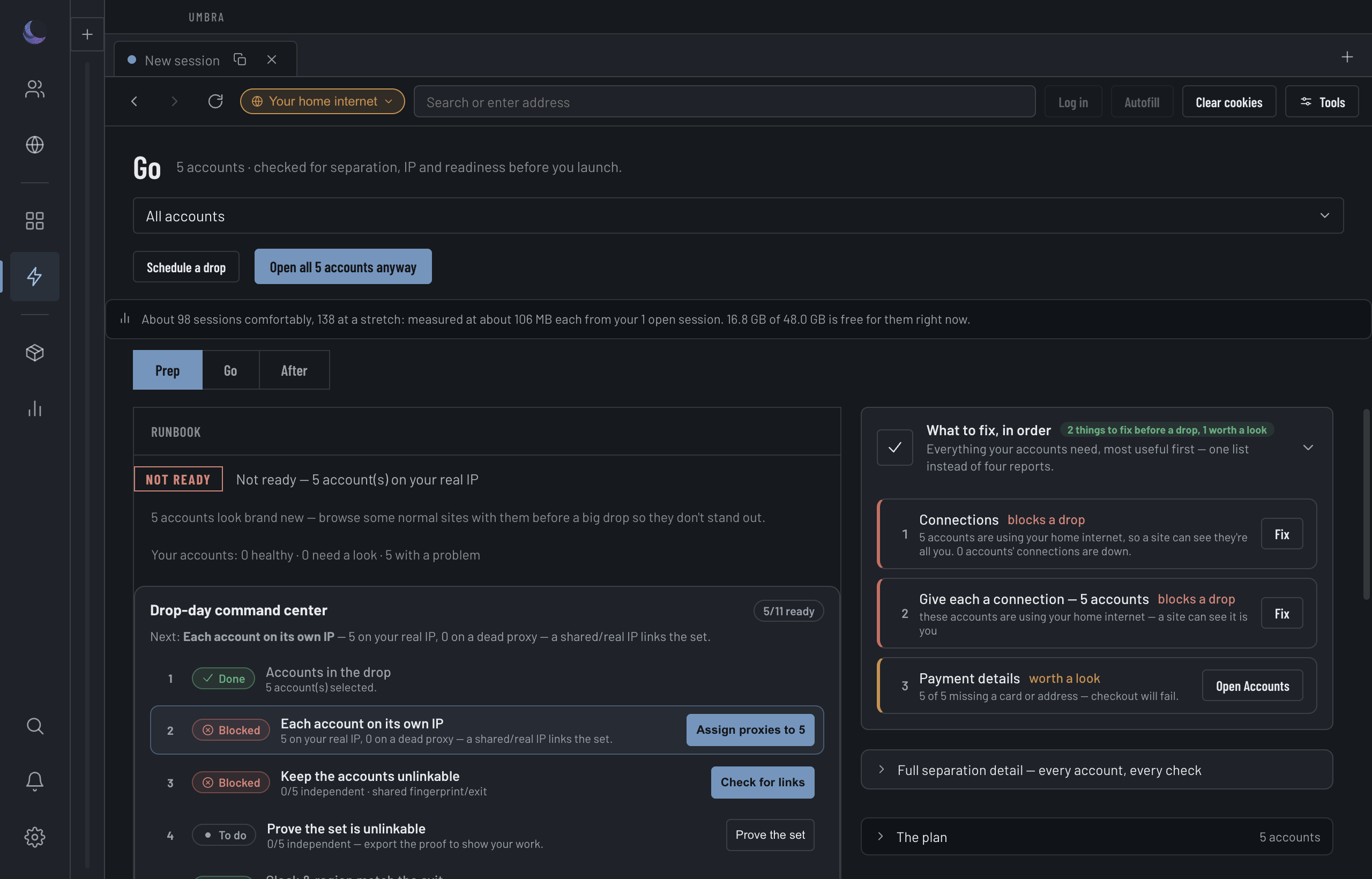
Three phases, one timeline
The screen is scoped to three phases, and you walk them in order. Everything for a phase lives under it — nothing hides on a panel you have to remember exists.
You land on Prep by default, because that is where the work is before a sale.
The countdown and the verdict
Two numbers sit at the top, and they are the two you check first.
The countdown to your next scheduled drop renders as its own figure beside the title — not buried in a sentence — because the time to the bell is the single most important number on the screen. When nothing is scheduled, a line tells you what the drop set is instead.
The verdict rolls every readiness check into one word: GO, CAUTION, or NOT READY. It is the same verdict the runbook computes — read Readiness & the runbook for what each check means and what actually blocks a drop.
Get alerted away from the machine
You don't have to be watching the boards. Set up a channel under Notifications & webhooks (Discord, Slack, or a generic webhook your phone can pick up) and subscribe it, per channel, to the events you care about — a checkout win, a restock/watch hit, an account through the queue or bypass, or an account that hit a bot-wall / CAPTCHA and needs you. Each event is opt-in, so a channel only pings for what you chose.
What crosses to a channel is deliberately minimal: the account's name, the page it's on, and the moment — never a URL, a proxy, an email, or anything Umbra keeps secret. A CAPTCHA alert is a "come back and do this" ping — Umbra never solves one for you.
And you don't only get the ping in the moment: the notifications bell keeps a Recent activity feed that survives a restart — warm-ups and how each ended, queue crossings, and bot-checks, newest first — so the morning after an overnight run you can scroll back to what happened and when. It holds the same minimal detail the channels do (an account name and what happened), and nothing more.
When a check stops a session
Sitting at the boards, the thing you can't afford to miss is an account that's hit a wall — a bot-check or access page answered instead of the site, and that Session can't buy until you clear it. On the Go phase, every Session in that state gathers into one board, Sessions blocked on a check, so a wall on account nine of fifteen doesn't hide behind the others until you happen to tab to it.
Each row names the account and the site it's stuck on, with two actions:
The board reads the block state each page already shows — it adds nothing to what Umbra looks at — and it disappears the moment nothing is walled. It's the on-screen half of the alert above: the alert pings you to come back, the board shows you who.
If a page goes blank
Very rarely a Session's page can go blank and stay that way — most often straight after a purchase, when you send it to the next link and nothing loads. That Session's secure connection has stalled. You don't need to restart Umbra: open Tools → Session for it and use Rebuild connection & reload. It rebuilds just that account's connection and reloads its tabs — every other account, and its place in any queue, is left exactly as it was.
Open the whole drop set
The header's open-all button launches every Account in the set at once, staggered so a fleet of fifteen doesn't open in one thundering burst. It isolates failures: if two of twelve fail to open, it opens the other ten and names the two, rather than reporting a clean twelve and leaving you to notice at the bell.
If a saved guided open matches the current scope, the button runs that instead: it opens each Account to the target page and hands off.
Scheduling the drop
A scheduled drop arms a countdown and moves through a small set of states, shown as a status dot beside the plan.
When a scheduled drop fires, it is a managed surface like every other: it prepares the Sessions on time, it does not complete a purchase. The buy is still yours to press.