Proxies
Bring your own exits. Umbra tests them, assigns one per Account, and rotates them on your rules.
What it's for
Umbra doesn't sell exits. You bring your own pool of proxies; Umbra tests each one, hands a single exit to each Account, and rotates them only on the rules you set. The result is that every Account browses from its own place, and no two Accounts share an IP by accident.
Come here when you first set up, when you add capacity before a drop, or when one Account's exit goes bad mid-week.
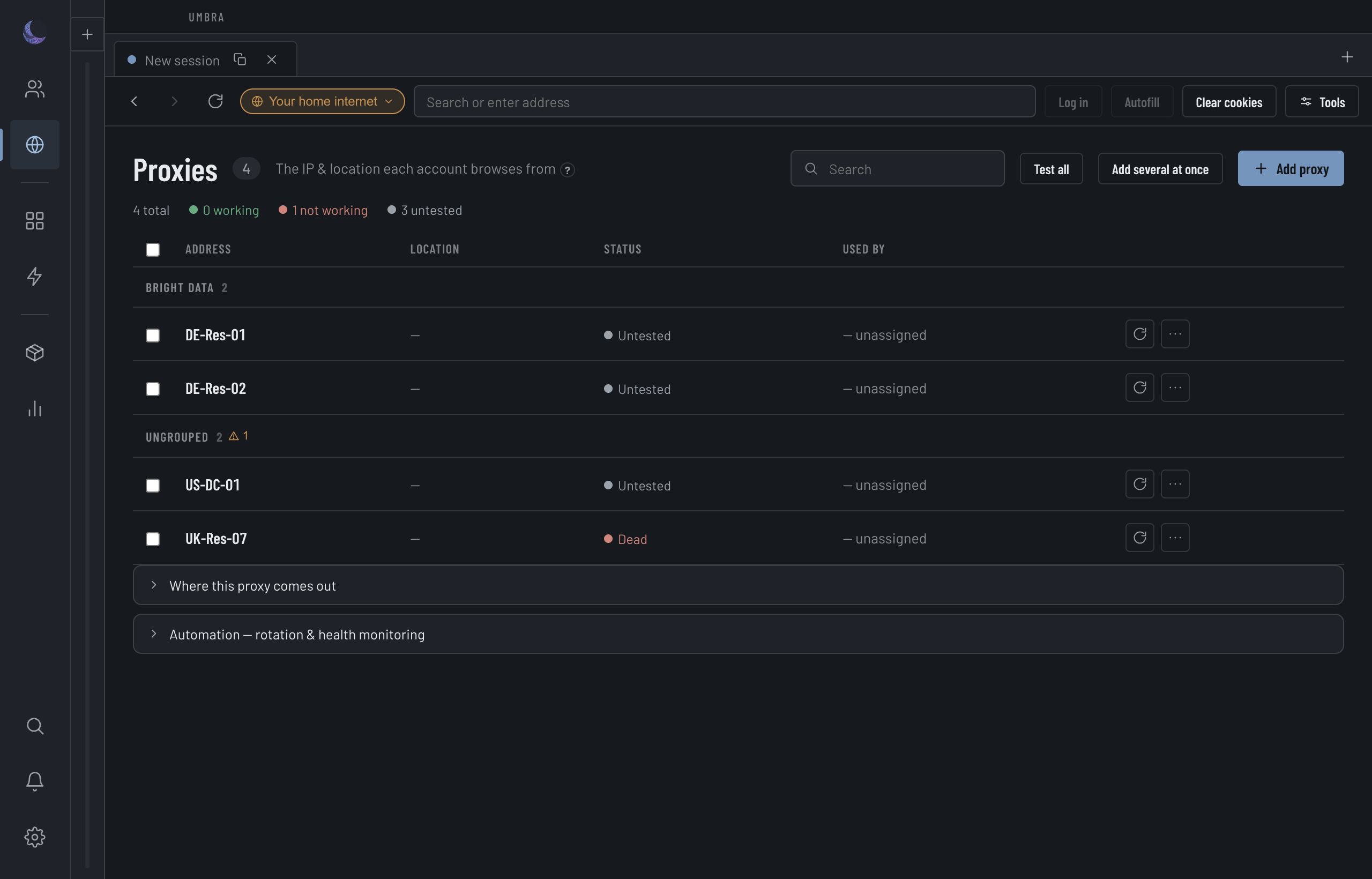
Add your proxies
Add or paste your exits
Add one exit at a time, or paste a block in host:port:user:pass form. A proxy's password never crosses into a browser Session — the stored record only carries whether a password is set, not the secret itself.
A SOCKS5 exit must be authorised by IP address. The browser has no SOCKS5 sign-in, so a SOCKS5 line that carries a username and password could never connect — Umbra refuses it when you add or edit it and says why; a pasted list skips such lines. Use the HTTP endpoint your provider offers for the same exit instead.
Group them (optional)
Tag exits into groups — by provider, region, or the job they're for — so you can assign and rotate a whole group at once. To re-organise in bulk, tick the exits and use Move to group in the selection bar: it changes the group and nothing else — test results, region readings and credentials all stay exactly as they were.
An HTTPS exit — one you reach over TLS — is dialled as HTTPS, and may carry a username and password like an HTTP one. The network engine cannot chain in front of it, so an Account on an HTTPS exit runs on the browser's own TLS and its status says so. A connection you had saved as HTTPS that was working was an HTTP proxy all along (that is how it used to be dialled) — Umbra has relabelled it HTTP. If you add an HTTPS connection and it fails its test, your provider most likely gave you an HTTP one.
When anything on the page needs a human — failed, blocklisted, or tested too long ago — a needs attention chip appears in the result strip with the count. Press it and the table shows exactly those exits; fix or re-test them and the chip retires itself.
Test them
Run a test (next section). Until an exit is tested, Umbra knows nothing about where it comes out.
An exit another Account already holds
Two Accounts on one exit are the same visitor to the site. So when you pick an exit — in the Account's own picker, the new-Account form, bulk Assign connection, or the per-Session picker in the address bar — one that another Account is assigned to is marked In use and names that Account, whether or not its Session is open. An Account in Recently deleted still holds its exit, and restoring it would put the two on one exit, so it is named too, as (in Recently deleted). Umbra doesn't stop you picking an in-use exit; it makes sure you know.
Don't reuse a burned exit
An exit that browsed for an account carries that account's history with the site. Delete a banned Account, scroll the list, and hand its old exit to a fresh Account, and you've given the new one a head start on the same fate — a reused exit tends to burn faster.
So Umbra remembers every exit that has ever been attached to an Account, and keeps that memory even after you delete the Account. A used exit is marked in red everywhere you can pick a proxy — the Account's own picker, the per-Session picker in the address bar, and the Connections list — so the warning is in front of you at the moment you choose, not after. The mark never says which Account held it; it only says this one has been used.
To see the history — which Account names an exit carried and when, so you can rebuild one you've lost from the record — open the exit and read Previously attached to.
Test before you trust
Testing an exit does two jobs at once. It confirms the exit actually answers, and it reads back where that exit comes out — its country, city and time zone. Those readings are what Umbra later copies onto any Account you place behind the exit, so its clock and locale match the place it appears to browse from.
The test also asks four public blocklists — the open-proxy list among them — whether the exit is listed, which is what the blocked reading below comes from.
Prove it doesn't leak
Testing confirms an exit answers. Verify goes further: it opens a throwaway session routed through that exit and runs a WebRTC leak check on it — the same class of leak that can surface your real address around a proxy. Umbra never runs this check on a direct connection; if the exit can't be routed, the verify refuses rather than probing your real network.
Health at a glance
The Speed cell prints the last reading, and the result strip above the table sorts every exit into Good, Slow, Failed, Blocked or Not tested — click one to show only those. The state decides whether an exit can be handed to an Account.
142 ms · 9d) — "142 ms, as of nine days ago" is a different fact from "142 ms", and the difference matters most right before a drop. Re-test to clear it. An exit that answered without a usable figure reads working instead, with the same ageing.Assigning and rotating exits
Umbra spreads your pool evenly — one exit per Account — and rotates on the trigger you choose: on launch, on a timer, or when a health check finds an exit has died. A Session that's holding a live cart is never rotated out from under you.
What "eligible" really means
Every place that picks an exit — first assignment, rotation, de-link, and bulk distribute — runs the same eligibility rule. That one shared rule is why a dead or blocklisted exit is never handed out anywhere.
If a bulk distribute can't cover every Account, it doesn't force a bad assignment — it leaves the uncovered Accounts exactly as they were and tells you the shortfall. Read that banner: an Account it couldn't cover keeps whatever exit it had, including none at all.