Opening & managing Sessions
The wall of live Sessions and how to drive it.
What it's for
The Sessions screen is your fleet at a glance: every browser you've opened, each as a live card carrying its Account name, where it sits in a queue, and any cart timer counting down. It's the screen Umbra opens on, and the one you keep up during a drop so nothing times out while you're looking somewhere else.
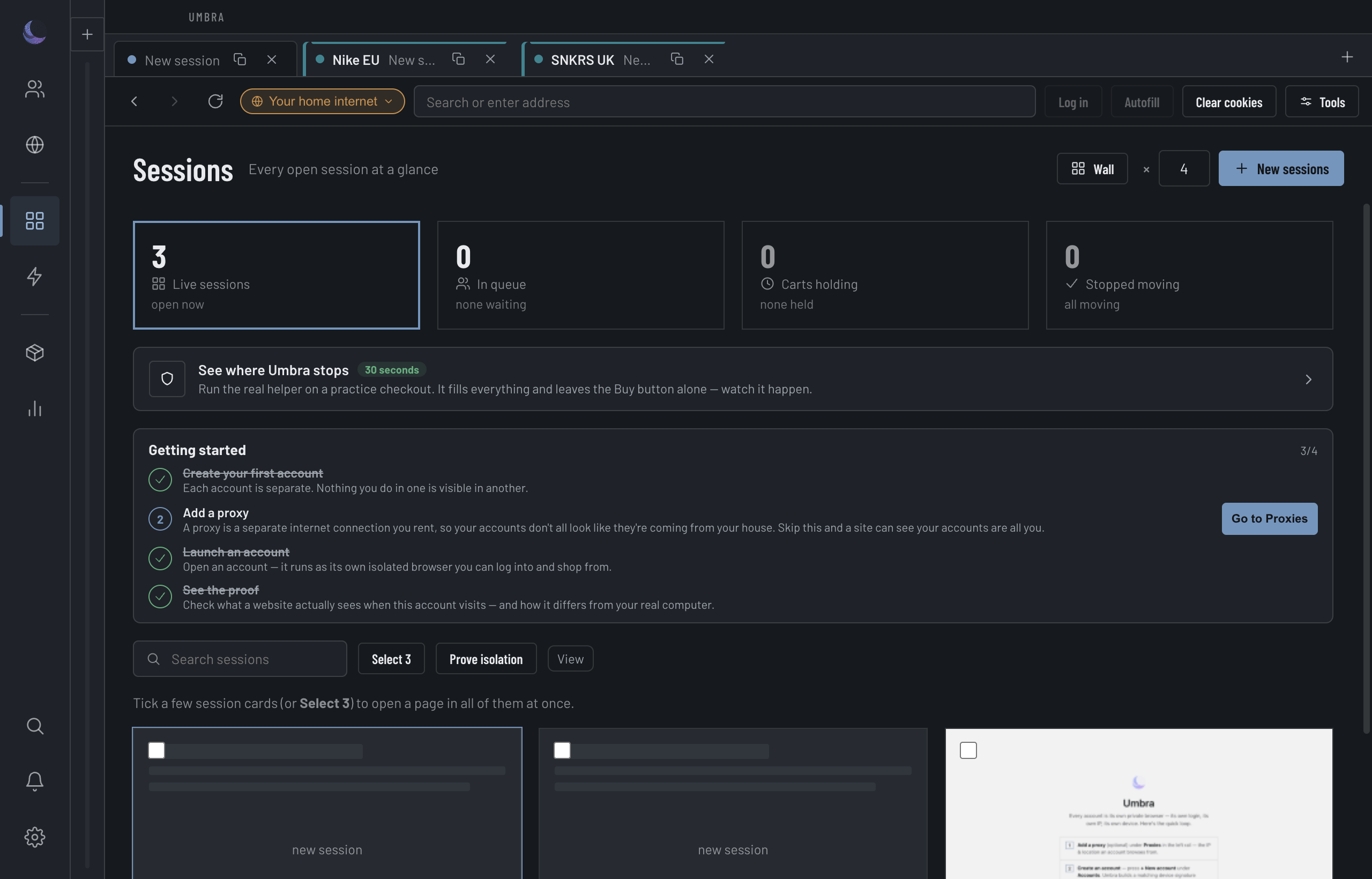
Open new Sessions
Type a number, press New sessions, and Umbra opens that many at once — one to thirty. These are throwaway Sessions: each gets its own freshly-minted Fingerprint, but no Account and no exit — so they browse on your real connection, not behind a proxy. To open Sessions behind an Account's exit and Fingerprint, launch them from that Account.
What each card tells you
A card is one open Session. It shows only the signals that decide whether it needs you.
Queue 1,240 badge while the Session waits in a virtual queue, or Through once it's in.12m to front when a queue is advancing, or slip when the position is going backwards.Hold expired, Signed out, a bot-check — with the full sentence on hover. The same signal the Wall shows, so a dying Session never looks calm on the board.Filter to what matters
Above the tiles sits the safety line — the one-glance answer to the question this product exists for: N of N sessions proxied. When any session is the exception, a chip appears beside it — N on home internet for sessions leaving on your real connection (including throwaway Sessions you opened deliberately), and N disguise degraded for sessions whose Fingerprint overrides didn't fully take, or whose network layer the hardened engine could not carry (it never started, or the proxy is a SOCKS5 or HTTPS one it cannot chain). Each chip filters the grid to exactly those sessions; the count and the rows it shows are one derivation, so they can never disagree. The line states facts, not verdicts — it will tell you two sessions are on your home internet, and it will never tell you "all safe".
Four chips sit below it — open, holding carts, queued, stopped moving, each with its count — and each is also a filter. Tap one and the grid narrows to just those Sessions; tap it again to clear. A Search box and a group picker narrow it further. A tile that would filter to nothing stops being a button, and a filter that hides every Session says so, with one control to undo it — so the grid can't strand you looking at an empty screen.
Act on the whole selection
Tick a few cards (or Select N) and a selection bar appears. From it you can open one URL in every selected Session, reload them, or close them — one action across the whole selection. Reload and Close ask first when a selected Session is holding a cart or waiting in a queue, and the confirmation names what's at stake rather than warning by rote.
Watch everything at once — the Wall
Wall tiles every open Session into a live grid — real views, not thumbnails — so you can watch and work many drops side by side. Choose 2, 3 or 4 columns (paged, so cells never shrink to nothing on a big fleet) and sort by Urgency — carts expiring soonest, then through-the-room, then queued, with a dead Session floated to the very top — or keep your Manual drag order. Press number keys 1–9 to jump a tile full-size, pop a tile out to its own window, or Spread across screens to throw one Session onto each monitor.
On a tile holding a cart, Fill in runs the same cart-prep as Finish — declines add-ons, ticks terms, autofills — and stops at the buy button, which stays yours. The full behaviour is on Address bar & guardians.
Open in Chromium
Open in Chromium — on every Account's row and tile beside Open in Umbra, in the row's menu, in the bulk bar for a selection, on the Account's inspector, and from the keyboard (Enter opens the focused Account in Umbra, Shift+Enter in Chromium) — starts a separate Chromium on this machine for that one Account: its own profile folder under Umbra's data, its assigned connection, its language, and the position that follows its connection. On fingerprint-chromium — the patched build this door is made for — the Account's device persona (platform, cores, memory, time zone) is also handed to the browser when it starts, and canvas, WebGL, audio and font readings come from the browser's own code rather than from a script. Use it for the buying itself when a site keeps refusing checkouts from the in-app Session; its TLS and HTTP/2 are always its own.
Umbra installs nothing. It looks for fingerprint-chromium at /Applications/Chromium.app (or the path in UMBRA_NATIVE_CHROMIUM) and says so when it is missing. A connection that needs a password reaches the browser through the Umbra Engine as a plain tunnel — no TLS interception — so for such a connection the engine must be on. A connection with no password is handed to Chromium directly when the engine is off, and rides the engine's tunnel when it is on. A phone persona does not open here, because no desktop build wears one.
The window is a member of the same Account, not a stranger to it. Its cookies go in before the first page loads, so it opens signed in with whatever the Session has earned — warming included — and what it earns comes back to the Session every minute, when a tab closes, when you press Close Chromium window, and when Umbra quits. Bot-check cookies stay with the browser that earned them, and what the window drops — a sign-out, a session token the site replaced — the Session drops too, so the Account never looks signed in when it is not. Everything the Session reports, the window reports too: a Ticketmaster U103 marks the Account's heat and the connection's trip memory, a queue place or a held cart holds rotation and de-linking off the Account, reaching the front or hitting a bot check raises the same alert, and a confirmation page lands in the Ledger and fires the same success webhook the instant the window reads it. The inspector shows the window's tabs, its queue place or cart, and its last cookie sync while it is open.
Which browser, and what it applies. Once a window has opened, the Account's inspector names the browser's own version — read from the running browser, never from the file name, and never Electron's built-in Chromium — and lists each setting under Chromium details in three groups — Read back from the browser (platform, cores: Applied, Not applied, Inconclusive or Not verified yet), Not read back (memory, brand, time zone, noise) and Set by Umbra (connection, location, language, start page, cookies). What Umbra learned is shown before the next open too. Replace the browser file and it reads not yet verified again until it has been opened once.
When it will not open, it says why. A missing browser, a profile folder Umbra cannot create, a folder another Chromium already has open, a browser that quits before its window is ready, and a program that runs but does not answer Umbra's control connection each have their own message and their own next step — close the other window, check the folder, or install fingerprint-chromium.
Two Sessions, one Account
Opening a second Session on the same Account doesn't hand you a second identity — it hands you another window into the same one.
Pop-up windows
A window a page opens — the 3-D Secure step at checkout, a sign-in that reports back to the page, a named window the page then submits a form into — opens as a Session of the same Account: same proxy, same Fingerprint, and the page keeps its link to it (its handle, messages both ways, a blank window it writes into). A target that is not a web page — a link into another app on your computer — is refused.