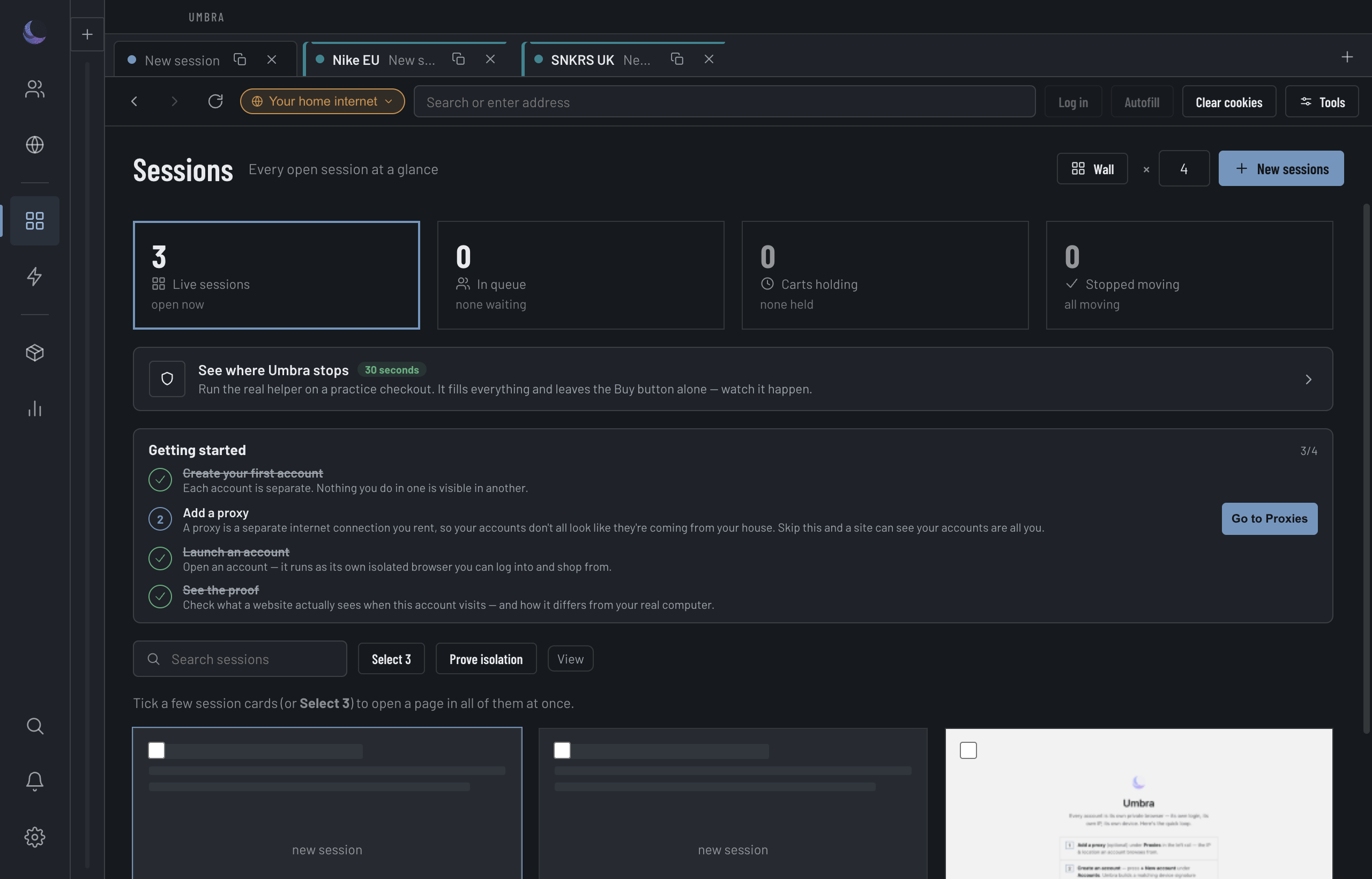
Every live Session has its own address bar — its own back and forward, its own URL, and, above all, its own exit. This is where you see what IP a Session is really on, switch it, sign in and autofill for the site, and — during a drop — where the guardians appear that keep a countdown and a buy button in front of you.
One Session's bar: who you're browsing as, the exit it's on, and the cart guardian that follows the clock.shot-sessions · a live Session's address bar: account chip, exit chip reading a proxy host, a held-cart guardian strip below it
The bar, control by control
Back / Forward / Reload
This Session's own history — never the app's.
Account chip
Who you're browsing as: the Account name and colour, an isolated Session and Fingerprint. Hover it to see the exit it's behind — or that it's on your home internet, when the Session runs direct.
Exit chip
What IP this Session is actually on. Click it to switch (below).
Log in
Fill this Account's saved sign-in details for the current site.
Autofill
Fill this Account's name, address and card into the page.
Clear cookies
Wipe just this Session's cookies — no other Session is touched.
The chip reads the exit host — or Your home internet, in plain words, when the Session is running direct. Nothing else in the app shows this, and it's the first thing to check before you do anything that matters. Click it to switch this Session's exit, or to put a direct Session behind a proxy.
Buyer mode: the section fence
With buyer mode on, a Fence on chip appears; if the cart in front of you is outside your team's sections it hardens to Fence: will refuse, and both Autofill and Finish decline that cart. The verdict is main's own, not a re-reading in the page — so the chip can't promise the opposite of what the button does.
The cart guardian follows the clock
The moment any Session holds a cart, a strip pins itself across every screen so a countdown is never lost to navigating away. It shows the single most-urgent cart — its Account, a live mm:ss, the seat and section, and +N more for the rest — with Go to jump to it and Finish to prep it. The countdown re-anchors to the page's own reported seconds on every poll, so it can tick down but never drift below what the site says.
And it's heard, not just seen: as the clock passes 2 minutes, 1 minute and 30 seconds the guardian rings once per mark, the tone sharpening each time — a colour change on a strip you're not looking at isn't an alert. The chimes respect the alert-sound switch in Settings → Appearance & alerts.
When the tickets actually arrive
The strip also reads the cart page's own delivery line and says, in plain words, whether these tickets can be passed on the moment you buy them. It is the fact that decides whether a flip makes money and the one you have no time to go looking for while the clock runs.
In hand straight away
An instant download, or a mobile ticket you can transfer now. List it immediately.
Transfer is delayed
The site will not release the transfer until nearer the event. It cannot be listed as instant — doing so anyway is what earns a marketplace penalty, and the payout waits either way.
Collect at the venue
Will-call, or tickets bound to the card used to buy them. These cannot be handed to a buyer at all.
Posted to you
Physical tickets in the mail. Not instant, and dependent on the post.
Hover the line to see the page's own sentence, exactly as it was written, so you can disagree with the reading and act on the source instead.
What this Account already holds
Ticketmaster enforces a per-event limit after the sale: the order goes through, you list the tickets, and days later they are cancelled. A cancelled pair that has already sold is a penalty and a buyer to refund, not a missed margin — and a fleet makes it easy to do by accident, because no one Account can see what the others bought.
When the cart page names its event, the strip says how many of that event this Account already holds. It is a warning and never a block: Umbra does not know your limit, only what your own orders say.
Finish and Fill in: prep the cart, keep the buy
Finish (and Fill in on a Wall tile) runs checkout hygiene on a held cart — declines the add-ons, fills your saved details — and stops at the buy button.
Commit assist: Umbra rings the button, you press it
On a fast checkout, commit assist draws a ring around the buy control in the page and puts a bar at the top naming the three things you don't have time to read for yourself: the Account (which of fifteen this is), the clock (the page's own countdown), and the label of the ringed control, verbatim — so seeing "Add to cart" where you expected "Place order" catches a wrong ring in the half-second you have. Not that one rings the next candidate instead.