Umbra is an anti-detect, multi-session browser. You run many identities from one machine, and the whole product exists so that no two of them — and no one of them and your own home connection — can be tied together. If you take one idea from this guide, take that one; everything else is in service of it.
Read this page once for the three words the rest of the guide leans on, the promises underneath them, and where things live.
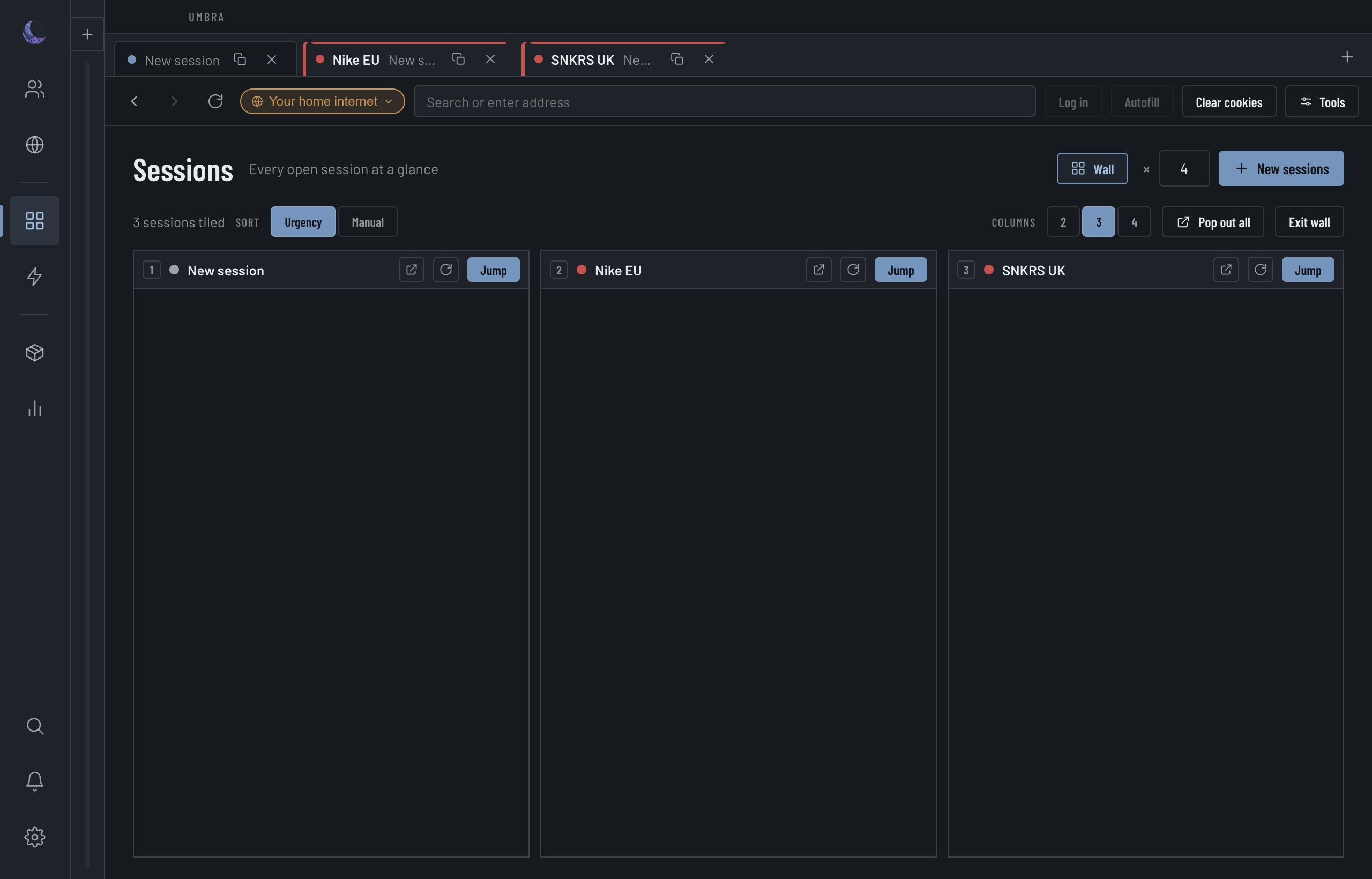
Three Accounts, three isolated browsers, one window.shot-sessions · 3 Accounts open as isolated Sessions side by side, each its own colour and on a different site
Three words you'll see everywhere
The code says "profile" and "tab"; the app and this guide never do. Three words carry the whole model, and they don't overlap.
Account
The isolated identity — one login, one payment detail, one place it browses from. What you own, and what outlives every Session.
Fingerprint
The device signature an Account presents: its screen, fonts, graphics, time zone. Umbra builds one to match the Account's exit, so the disguise is coherent.
Session
The isolated browser you actually open. You can open several for one Account; they share that Account's storage and nothing else.
The one promise
Every Account is sealed off from every other. Its cookies, its storage and its logins live in a partition of their own, and nothing crosses between them.
The other half of the promise is that an Account browses from where you put it, and never from your real connection by accident.
How the app is laid out
The sidebar down the left edge is the whole map. Every destination is named and filed into one of four groups by what the thing is about, with Settings and a separation meter at the foot.
Drop day
Sessions, Go and Watch — the live operation, and the pages you stand in front of while it happens.
Fleet
Accounts and Proxies — what you own. Outlives every Session.
Records
Ledger and Reports — what you spent and what happened.
Build
Site helpers, Routines and Snippets — the things you make once and reuse.
Sessions themselves are not in the sidebar — they live in the strip along the top, because the sidebar switches work surfaces while the strip holds the browsers you have open. Search and Notifications sit in the title bar, top right; Settings is the sidebar's last row. Above the groups, the who-row shows the Account whose session is open — click it to go back to that session.
What Umbra does, and where it stops
Umbra warms Accounts, fills forms and navigates. It does not buy. The line is deliberate, and it is enforced rather than merely promised.