Accounts
Create, group, inspect and import your identities.
What it's for
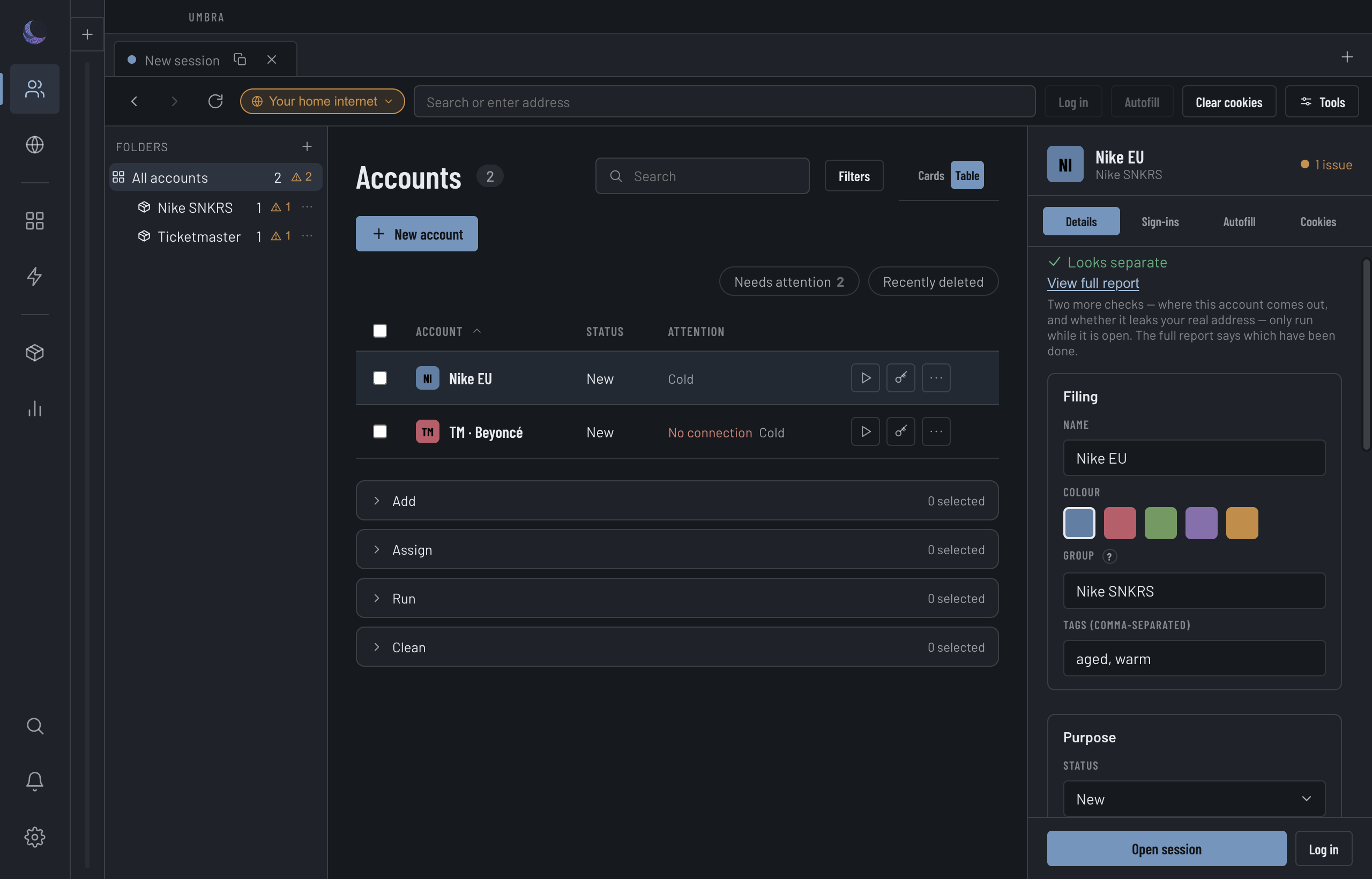
An Account is one isolated identity — its own cookies, its own exit, its own Fingerprint. The Accounts screen is home: it's where you create identities, file them into groups, filter and inspect them, and act on a whole selection at once. One row (or card) per Account; the panel on the right inspects the one you've selected.
Come here to spin up a new identity, to find the three Accounts that need attention before a drop, or to bulk-assign exits across a group.
Make an Account
New account
Press New account, give it a name and a colour. That's enough to open it — everything else can follow.Give it an exit
Assign a proxy from the inspector's Connection card. Add exits first under Proxies. With none, the Account browses from your home internet (see below).Open it
Press Open — it launches as its own separate browser, sealed from your other Accounts. See Isolation.Cards or table
Small fleets read better as cards, big ones as a dense table. Umbra picks one for you the first time — a fleet over eight opens as the table — then remembers your choice. It never flips the mode as you click between a group of sixty and a group of three.
The grid, and what its chips mean
Every row leads with the Account's name and a status chip — New, Warming, Aged, Verified, Ready or Burned. To the right sit the exception chips: they appear only when something needs your eye, worst first, and each links to where you'd fix it.
Each Account also carries a free-form Notes field — edit it in the inspector's details. Search matches it, so "VIP presale via SMS" typed once replaces the spreadsheet column you were keeping on the side. Notes sync and export with the Account like every other setting.
Groups, filters and views
The groups list on the left files Accounts into groups. Above the grid, status chips filter and carry live counts, and the Filters button adds device, retailer, connection state and tags. Save any combination as a view to recall it in a click. Two fleet-level chips sit here too: Live shows only the Accounts with a Session open right now, and Needs attention shows only those with something wrong.
Acting on a selection
Tick a set of Accounts and a bulk bar appears. Everything it does targets the visible selection only — a row hidden by a filter is never silently opened, re-rolled, exported or deleted.
Extensions
An Account can load unpacked browser extensions — point it at a folder and Umbra loads them into that Account's own partition, before its first Session opens. They're per-Account, exactly like its cookies: an extension loaded into one Account is invisible to the rest. The extension folders live on this machine, so a synced Account won't carry them to another device.
Where an Account has left from
The Connection card keeps a read-only egress history: every exit this Account's Sessions actually left through — recorded when a Session opens and when a live Session is re-pointed, not when a proxy is merely assigned. A Session that left on your real connection is recorded too, in red: the record is honest precisely because it would show the bad day. The list states its own bounds — it begins the first time the Account opens a Session after this feature arrived ("recorded since"), keeps the most recent 200 rows, and says how many older rows it dropped. Repeated openings on the same exit fold into one row with a count.
Recently deleted
Deleting an Account moves it to Recently deleted, not oblivion — and it keeps its exit reserved, so restoring it can't re-forge a shared exit with another Account. From there you Restore it, or Delete permanently, which cannot be undone.